
An interesting question popped up on the TechNet discussion list this evening:
I have a list of records with dates, which often repeat from one record to the next. I want all the same dates to be one colour. Then the next date would be another color. The background color of the date field would alternate from one color to the other as the date changes.
I've never run in to this need before, but it sounds like something that would come in handy. It also proves to be just enough FileMaker challenge to be interesting. Here's how to make it work.
Updated June 6, 2008: Based on feedback from David Zakary, I have added a second example that supports more than two alternating colors.
The Problem
First, here's a sample of the kind of data we're talking about:
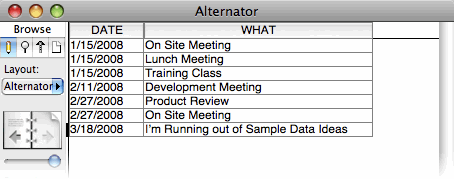
Notice that some dates are repeated from record to record. Here's how we want the data to display:
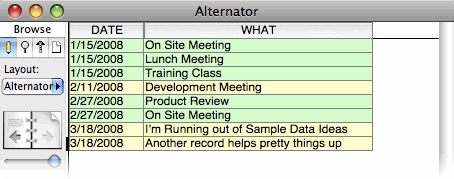
As you can see, this technique makes it very easy to see how different sets of records go together.
Formulating a Solution
The goal is simple, but it turns out this is a tricky thing to accomplish in FileMaker. After a little thought, it becomes pretty clear you're going to be using the GetNthRecord function. It's just about the only way FileMaker calculations can make decisions based on data in other records in the found set.
If you're not familiar with this function, it's a special one. It lets you fetch the value of a field from any record in the found set, which is an unusual sort of thing to do. Using it is a breeze:
GetNthRecord(My Table::My Field, 7)
The above formula gets the value of the My Field field from the 7th record in the found set. Simple.
The first step in solving out problem is to identify the boundaries. In other words, find the places where the DATE field changes values. You can do just that with a formula like this:
GetNthRecord(My Table::DATE, Get(RecordNumber) - 1) = My Table::DATE
This formula compares the value of the DATE field in the previous record (Get(RecordNumber) - 1) to its value in the current record. If you put this in a calculation field, you get results like this:
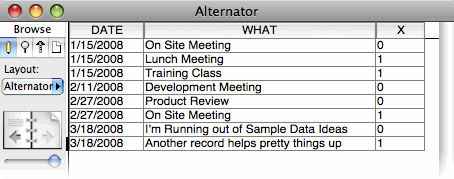
As you can see, the new field shows a 1 if the date is the same as the previous record, and a 0 otherwise. This is useful information, but it doesn't go far enough. There's no way to decide which color each record should use.
The Solution
Let's break it down. The color for any given record will either be the same as the previous record (if the date is the same) or different from the previous record. The formula above tells you when the color should change, and when it should be the same.
So you need a way to refer to the color of the previous record, compare the dates, and decide if the color should change or not. But there's no way to determine, from a calculation, the background color of a field in the previous record. Instead, we'll modify our calculation field so it tells us which color to use. This way, we can look at the value in this field to detect which color is in use. For simplicity, the field will have either a 1 or a 0, indicating one or the other color is appropriate.
(At this point I should take a break to reiterate that this technique is a bit mind-bending. Sorry.)
It is a little known fact that FileMaker calculation fields can refer to themselves. In this case, our field will refer to its value from a different record, but in fact, a calculation field can even refer to itself in the same record, and FileMaker will just use its current value. But I digress. At any rate, here's what our calculation will do:
- Check to see if the date in this record matches the previous record.
- If it does, set itself to the same value it has in the previous record.
- If it does not, set itself to a different value from the previous record.
Here's the formula that does the trick. Put this in a field called _COLOR (or use a different name and modify the formula accordingly).
Let(
	[previous_record = Get(RecordNumber) - 1;
	previous_color = GetNthRecord(_COLOR; previous_record)];

	If(GetNthRecord ( DATE ; previous_record ) = DATE;
		previous_color;
		not previous_color
	)
)
You need to Make this field unstored. Otherwise, it won't recalculate properly as you change your found set or sort order.
This formula might give you trouble when you try to create the calculation field. After all, you're creating the
_COLORfield, and the formula uses the_COLORfield. FileMaker might complain because, until you've OK'd the dialog box, the field doesn't exist, and you can't refer to a field that doesn't exist. The trick is to make the field first, then set its formula. When you first create the field, just OK the calculation dialog box with an empty formula. Then click Options again and add the correct formula.
The formula first sets a couple of variables just to improve readability:
- previous_record is the record number of the previous record.
- previous_color is the value of the
_COLORfield from the previous record.
It then checks to see if the date has changed. If not, it uses the previous_color value. Otherwise it switches the value.
In this case, I use the expression
not previous_colorto make the switch. Thenotoperator has the power to turn a1to a0and a0to a1, which happens to be just what I want. If that makes your head hurt, you can do it like this instead:if ( previous_color = 1, 0, 1 )
Here's how this field shakes out in our database:
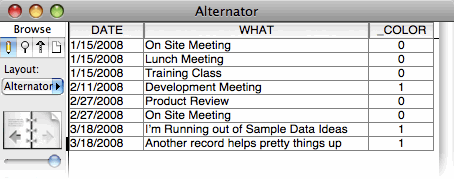
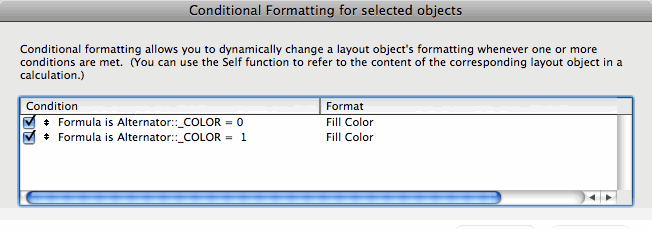
Notice that it perfectly alternates between 1 and 0 along with the dates, which is just what we need. To finish up, just add conditional formatting to your fields using the _COLOR field to help:
More Colors
If you want to cycle between more than two colors, you can make two small modifications to the formula. Here's an example that cycles through four color options (0, 1, 2, and 3):
Let(
	[previous_record = Get(RecordNumber) - 1;
	previous_color = If (previous_record = 0; 0; GetNthRecord(_COLOR; previous_record))];

	If(GetNthRecord ( DATE ; previous_record ) = DATE;
		previous_color;
		Mod(previous_color + 1; 4)
	)
)
The meat of the change is this line:
Mod(previous_color + 1; 4)
In other words, when the date has changed, we take the previous color value and add one to it. To keep if from getting too big, we use the Mod function, which has the useful power of "rolling it over" to zero when the value reaches 4. If you want five colors, or three, or 2,4601, just modify the second parameter to the Mod function here.
To make this change work, though, we had to get a little smarter with the previous_color variable as well. In the original example, this variable would be ? (or "undefined") for the first record since there is no previous color value to fetch. That doesn't cause a problem because the not previous_color line turns '?' in to zero for us. But the Mod function isn't so forgiving. So the above formula also makes sure previous_color always has a valid number value.
Once you have this formula in place, you just need to add more conditional formatting rules for 2, 3, and so forth.
Smokin'.