
One of the most asked questions about FileMaker is how to deal with damaged files. There is a glut of choices when attacking this problem and there doesn't seem to be one single answer. Compact, Optimize or Recover... Maybe Save as Clone which one works and why? Hopefully, this will answer a lot of your questions.
As I mentioned in my FileMaker DevCon: Day 2 article, Jon Thatcher, FileMaker Server guru, gave an excellent presentation on exactly what you should do when a file is damaged. He also gave some very in-depth explanations of what exactly each different option actually does "Under The Hood". I've broken a lot of this down for easy consumption but almost all of this info comes from his DevCon Session.
What causes a damaged FileMaker file?##
The most common way that a FileMaker file can become damaged is FileMaker Server unexpectedly closing on the server computer. This can be for any number of reasons. Perhaps the power went out and for some crazy reason you didn't put your FileMaker Server on a UPS (that was very not smart). Maybe one of those fantastic Windows Server programs decided your FileMaker Server was a virus and shut it down. My favorite is when a the night crew comes in and plugs their vacuum in and blows a circuit in your ups causing your FileMaker Server to lose power. Seriously, that has happened to me. Whenever your FileMaker Server closes unexpectedly wether it be the application or the whole computer there has likely been some damage to the file.
Note: If you are searching in a field and you are getting strange results or for some reason when you go to a layout a script hangs. It may be something as simple as a bad index. To fix this problem just turn off indexing on the field and then turn it on again (you have to close and re-open the Manage Database window between changes). This may take a while so make sure you are doing this after hours.
FileMaker files have many more opportunities for damage when they are not hosted on a FileMaker server. I won't even get into these because things as innocuous as network latency (Extreme cases but you get my drift) may even cause damage to your shared file so don't do it. Buy FileMaker Server instead.
FileMaker Server 9 Consistency Check##
The most common way people find out that there is a problem with their file is they fire it up in FileMaker Server 9 and it won't open. FileMaker 9 tells you that the file is damaged and must be recovered. This is definitely the point of much consternation because many people have taken these files, which they thought were perfectly fine, directly off their FileMaker Server 8 install and moved them over.
What these people are experiencing is FileMaker 9 Server's consistency check. The consistency check performs some cursory inspection on the file to check for common types of corruption. Specifically, it does the following:
- Asserts that block structure is intact - 4K Blocks
- Verifies that the next and previous blocks are there
When FileMaker Server 9 detects any problems during it's inspection it will suggest to use recover on the file. This actually isn't entirely necessary but we will go over your other options later.
Note: The consistency check does not actually verify the data stored within the fields in your file. So you may still have problems with the information in your file itself (ie. corrupt images in container fields)
FileMaker Server 9 Backups##
FileMaker Server 9 comes with a nice little addition that may seem frivolous at first but it is actually a great tool for proactively fighting corruption. As previously stated, there are many ways for files to become corrupted and the only real way to detect if there is corruption is to run a consistency check on the file. Opening and Closing the file definitely sounds a little tedious to me and that is where the backup consistency check comes in.
If you check the perform consistency check box in your backup schedule, whenever your backup runs the file created will be run through the same consistency check that occurs when a file is opened in server. Here are a couple of tips on the use of the backup consistency check:
- occurs after hosted files have been resumed
- should be done on important files that change often
- slower than the backup process itself (but who cares it's being done on the backup)
The primary value of this check isn't to be sure the backup worked. Rather, it is to check your file periodically (like every night, or a few times a day) to make sure it hasn't become corrupted. Since the backup is essentially a copy of the live file, if it is damaged, you might have problems with the live file that need your attention, and now FileMaker will tell you.
How often should I back Up?##
This is one of those points in life where less is definitely not more. Backup early and often would be a much better cliche. The best thing to do would be to set up a backup structure like so:
- Once Daily with consistency check
- Hourly Odd
- Hourly Even
If you have the hourly odd and even setup and you are forced to go to backup, you will be able to recover almost all of your lost data without much of a hassle. Having a backup scheduled for each day (ie. Sun, Mon, Tue ...) allows you to go back to a previous day if you find your hourly backups damaged as well. If you have space, I would even expand the back up structure to include a backup every 3-4 hours on each day (ie. Mon-4am, Mon-8am, Mon-noon). It is definitely a hassle to setup all these different backup folders and schedules but it saves a lot of time and important data when something goes wrong.
Hint: Take advantage of FileMaker Server 9's new feature that sends email when error's are encountered. This may allow you to catch corruption before it gets too pervasive and also can alert you if the backup fails because you're out of space, a disk is unavailable, or for any other reason.
Dealing with FileMaker Corruption##
Now that we have gone through all the boring stuff, how do we actually approach a corrupted file? There are many different options. The Tools -> File Maintenance Menu gives us Optimize and Compress. There is File -> Recover and there are also a couple interesting options in the File -> Save a Copy As menu. Which one is right? Well before we answer that question, we should probably go over each option first. I will try to go over all of them as briefly as possible and save all the info about which process to use until the end.
Note: Don't care about the options and just want to know what to do... Jump to the Nitty-Gritty
Save a Copy As -> Clone###
This command is a very useful but not really for fixing corruption. It gives you an exact duplicate of your file's structure without all the data. You get all your tables, fields, scripts and other important stuff without any records to distract from it's beauty. Another interesting feature of this function is that it deletes all the locale info from the file. The locale info is what dictates how region specific data such as dates and times are displayed in FileMaker.
The locale info is set on a FileMaker file when it is opened for the first time. The same goes for this clone file you have created. Since the clone is basically region agnostic until it is opened, it is ideal when you want to send a copy of your system to somewhere like France where the dates and default language is different.
Save a Copy As -> Copy###
Yup, this is as boring as you thought. This function creates a block for block copy of your file just like the FileMaker Server backup feature does. It terms of corruption problems: useless.
Save a Copy As -> Compacted###
Here is your workhorse. The Save a Copy As -> Compacted command is going to be the most useful command when your attempting to keep your file clean or remove most corruption. This command actually employs the Compact and Optimize process that you find in File Maintenance menu but it is actually occurring on the copy of the file not the actual file itself. This protects your original data and provides you with FileMaker's best attempt at a cleaner copy of the data as well. Seeing how this function makes use of the File Maintenance menu commands, I should probably explain them.
File Maintenance -> Compact###
Yea the name pretty much says it all here. FileMaker removes the space between blocks and combines blocks to create a smaller file.
File Maintenance -> Optimize###
Organizes the blocks of data so that they are in sequential order. The result of this is that the content is now organized in table and record creation order.
Note: There is limited value to this because we typically operate on data based on a found set which can have many records not necessarily in creation order.
The Recovery Command###
This guy is in a different league then the other commands because it's the only one that will actually drop data from the file. FileMaker recovery entails scanning all the blocks in the file and validating them. Any invalid blocks are skipped and left out of the file when it's recovered. A valid block has the following properties:
- both the next and previous blocks are in the file(each block contains data on the next/prev block)
- internally consistent (ie. has the required length of 4K, in correct order)
- is not a duplicate of a preceding block
Along with validating the blocks, the recovery process rebuilds the internal id's of the records and repairs the catalogue. In any extreme cases, fields that are lost due to corruption can actually be recovered. Ideally, you won't lose any missing data, your file will be completely salvaged and you'll see this reassuring dialog:
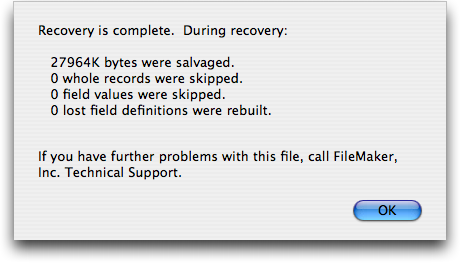
Note: Restored fields default to type
Textunless they are used by a summary field in which case they areNumber
How to Fix a Damaged File##
Don't. I know, after all that reading you are probably pretty pissed with that answer. Seriously though, when a file is damaged I would strongly recommend going to more recent clean backup and going from there. A damaged file is never 100% clean.
FileMaker provides you with some great tools to attack the problem but there is no definite answer as to wether the file is completely fixed or if there is some malicious corruption deep within the file that cannot be detected. As a general rule, damaged files should not be returned to production if you have a viable backup to replace it. This is definitely the ideal case but not necessarily the reality of the situation for everyone out there.
How to Fix a Damaged File (For Real)##
So you've determined that there is no possible way for you to go to backup. Once you have made that decision your path is actually quite simple. First, you need to use your File -> Save a Copy As command and choose Compacted. Then, only if the Compacted copy option fails, use the File -> Recover command. Never use File Maintenance -> Compact or Optimize.
The End
Just joking. After those statements I should probably add some type of justification to my thoughts (omitted: stolen from Jon Thatcher's session). I'll start with my last assertion: Never use File Maintenance -> Compact or Optimize. The reason for this is that the operations are actually being performed on your production file. Not a copy, the real thing. I believe the term for this is an in-place operation. Therefore, you are actually working on the file that you have open in your FileMaker Pro Client. This is not the ideal way to deal with removing Corruption.
Note: Jon Thatcher actually said never use the File Maintenance menu in his session so I'm not exaggerating for effect I promise
If you use File -> Save a Copy As command and choose Compacted, you are performing the same functions as you would with your File Maintenance commands but you are actually performing the action on a Copy of your damaged file. Your original file is not modified at all by this command. Also, as a fringe benefit you are operating on a copy in a whole different sector of the disk which removes the possibility of a damaged hard drive being the actual source of your problem.
You may have already guessed the reason for only using File -> Recover as a last resort. I mentioned the fact that invalid blocks are left out of the file when recovered. To put this more succinctly: the Recover process can cause the lose of records. Actually, not only records but data within records (ie. Field Data). So if data integrity is your goal, which it more then likely is, I would only use this process if absolutely necessary.