
Adding Script Triggers has opened up a world of possibilities for FileMaker developers. Each different type of script triggers has it's own nuances and pitfalls to be aware of. In fact, with script triggers, FileMaker, in some ways, begins to expose the complexity of more advanced programming environments. Nothing illustrates this more than the OnLayoutKeystroke and OnObjectKeystroke triggers. In this article, we'll look closely at keystroke triggers: the most powerful and complex of the triggers in FileMaker 10.
Download: We have developed a free (public domain) tool to help explore and discover keystroke modifiers and codes. You can download the Keystroke Companion and use it as you see fit.
Overview
In this article we'll dig deep into the OnObjectKeystroke trigger. With this trigger, whenever someone presses any key while an object has keyboard focus, the script you specify will run. It's pretty straight forward in concept.
Note: Keyboard Focus, to FileMaker, means different things to different objects. The most typical case is a field. When you click into a field, it has focus. If that field object has an
OnObjectKeystroketrigger, it will fire with each key. You can also attach keystroke triggers to buttons and tab controls. These have focus when you add them to the tab order, then tab to them, so that the button or one of the tabs has the thick black border. Portals and Web Viewers never have keyboard focus (but a field on a portal can, of course).
This trigger becomes extremely useful when you are trying to give your user immediate feedback about invalid input. For instance, say you have a phone number and you don't want any letter's in it or perhaps you only want someone to be able to enter a maximum of one character in the middle initial field. The best way to explain is to show it in action, so I am going to create a Keystroke Trigger that will prevent the user from entering more then 5, numerical characters into a field called ZIP_CODE. You can do this sort of thing with a field validation, but when you do, the user has to make a mistake before you tell them what went wrong. With a keystroke trigger, you can process the input as it is typed, giving immediate feedback. This is something that simply wasn't possible before FileMaker 10.
Figuring out the keys
To limit our ZIP_CODE field to 5 numerical characters we first have to determine which keystrokes the user has typed. FileMaker 10 has a new function Get ( TriggerKeystroke ) which gives the value of the keystroke that triggered the script. So if I was typing in my ZIP_CODE field and I hit the number 1 it would return 1 when I call Get ( TriggerKeystroke ). Simple enough. But we don't really want to have to write a list of all the values we are going to allow so filemaker gave us another new function Code () which give us the Unicode Value for a given character. For Instance Code ("1") yields the number 97. This doesn't seem like a whole heck of lot of use to us but the Unicode Values are organized in such a way that it's much easier to isolate the values you need. There are many lists out there for finding the unicode value of a character. This is the one I used.
Note: Unicode is a vast character set. Luckily, for the most basic roman alphabet letters, numbers, and punctuation, the codes match the simpler and more familiar ASCII standard. None the less, if you need to deal with Japanese, Arabic, or Desert characters (for instance) you'll have to deal with more complexity.
Allowing Certain Keys
Here are two very useful functions to show how using the unicode value makes life much easier:
KeystrokeIsLetter:

Let(
keyCode = Code ( Get ( TriggerKeystroke ) );

( keyCode >= 97 and keyCode <= 122 ) or //all Lowercase letters
( keyCode >= 65 and keyCode <= 90 )      //all Uppercase letters

)
The above function results in true whenever a letter (lower or uppercase) is typed. If you wanted to check for all these letters you would have to written a case statement with 56 different test cases! That would not have been fun. Also you'll notice that a lowercase "a" (97) is different then an upper case "A" (65). This is actually really great because when you want to get more a little tricker with your triggers you can isolate upper or lower case letters as needed. We're not really interested in letters here so lets look at the comparable custom function for numbers:
KeystrokeIsNumber:

Let(
      keyCode = Code( Get ( TriggerKeystroke ) );

      keyCode >= 48 and keyCode <= 57
)
Using this function we can make sure that they hit a number key, so we're ready to get started.
Putting It All Together
Now that I can isolate the number keys it's time to write on our script. The script that runs should return false if the incorrect keys are pressed. This causes FileMaker to cancel the keystroke, meaning it never appears in the underlying field. You've blocked it in your trigger script.
Our script should be very straight forward using the custom functions above. Here is the code of our script:
If[not KeystrokeIsNumber ]
  Beep
  Exit Script[Result: False]
End
Now that we disallow any non-numerical keys we need to make sure that we don't allow entry of more than five characters, so lets add that logic:
If[not KeystrokeIsNumber or Length ( TEST::ZIP_CODE ) >= 5]
  Beep
  Exit Script[Result: False]
End Id
If you test this field, you'll quickly discover a problem (and a pretty serious problem at that). Since we only allow number key presses, we've inadvertently blocked several useful keys: Arrow keys, the Delete key, the Tab key, and even the Enter key. When it comes time to edit a value you've already entered, nothing works. This is one of the problems that you will run into when you use these filters. You pretty much always want to allow the navigation keys to go through. Don't worry though, here is another custom function for finding editing keys:
KeystrokeIsEditing:

Let(
   keyCode = Code( Get ( TriggerKeystroke ) );

   keyCode = 8 or
   keyCode = 9 or
   keyCode = 10 or
   keyCode = 13 or
   ( keyCode >= 27 and keyCode <= 32 ) or
   keyCode = 127
)
Adding the editing keys to the code yields:
If[not KeystrokeIsEditing]
  If[not KeystrokeIsNumber or Length ( TEST::ZIP_CODE ) >= 5]
    Beep
    Exit Script[Result: False]
  End
End
Now we're are really close. There is just one final issue that we need to address. This one is even more difficult to spot then the arrow key problem. Let's say someone were to select the number in ZIP_CODE field and then start typing. What would happen? Well if there were 5 characters already in the field, they just get a beep. But since they have text selected, and they are replacing it with a new entry, the keystrokes really should be allowed. That's a problem. To fix it we can use another handy function that FileMaker has graciously provided: Get (ActiveSelectionSize). This function returns the length of the selection in the active field. In other words, if you select the word "Cardinals" in a field containing "The Cardinals are...imperfect", then Get (ActiveSelectionSize) would return 9.
Final Answer
Our 100% complete script now looks like so:
If[not KeystrokeIsEditing]
  If[not KeystrokeIsNumber or (Length ( TEST::ZIP_CODE ) >= 5 and Get (ActiveSelectionSize) = 0)]
    Beep
    Exit Script[Result: False]
  End
End
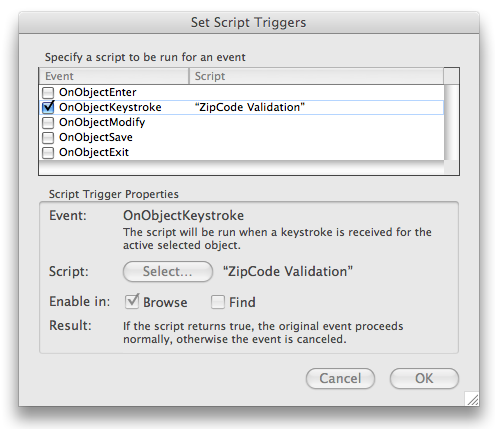
Now that we have our script we simply attach it to our field and we are done. To do this just right click on the ZIP_CODE field object and select Set Script Triggers... from the drop down menu. A window pops up like the one shown below. Now select the OnObjectKeystroke event and finally select your script. I would make sure that only browse mode is checked because you have many more keys that you would want to allow in find mode.
Phew, we made it through. Script Triggers are definitely a little bit of work to setup but I think they provide a wide range of new and interesting functionality. Happy Script Triggering everyone.